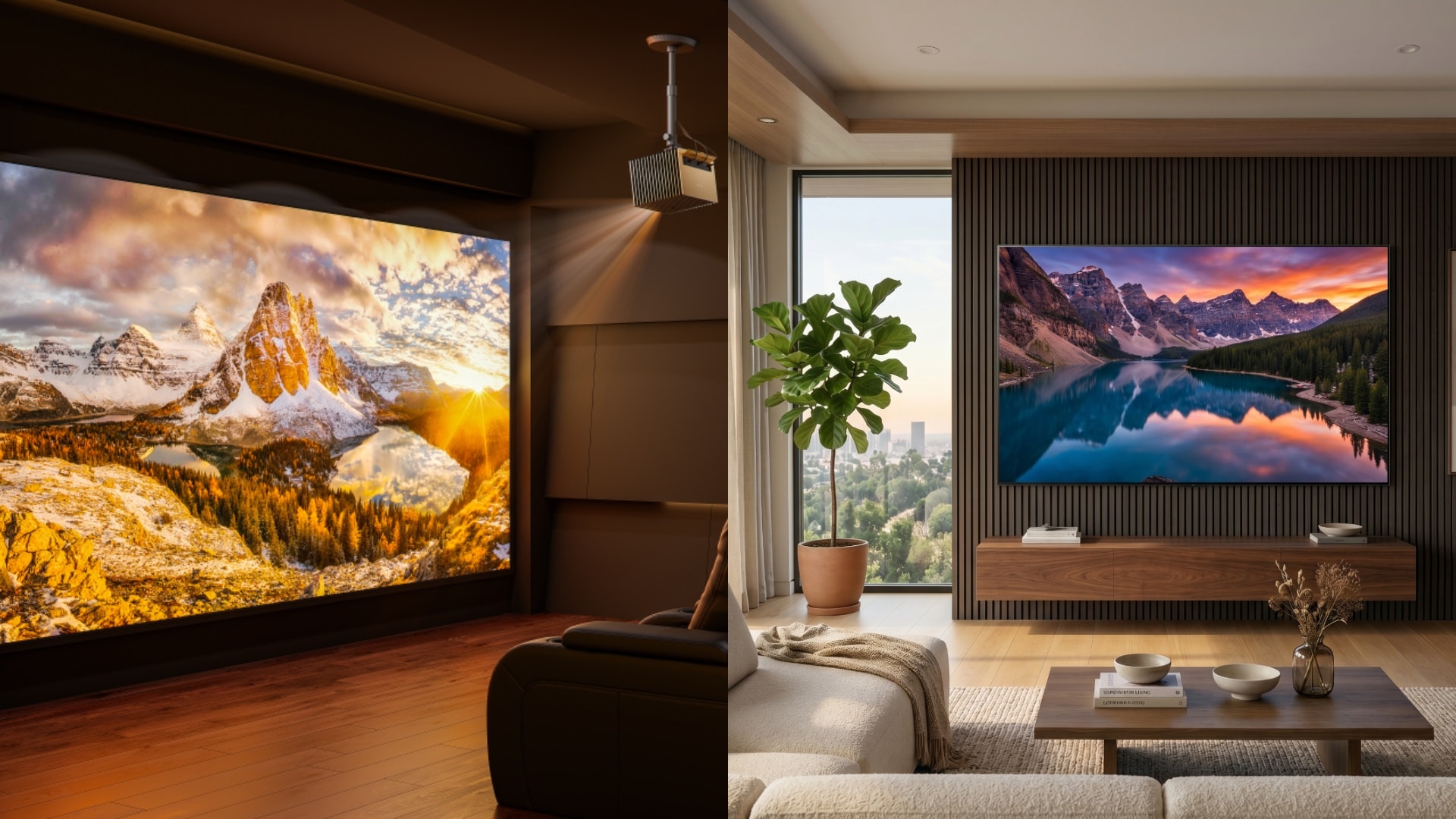
If your projector looks washed out, too blue, too dark, or overly bright, calibration can dramatically improve image quality. In this guide, you'll learn how to adjust brightness, contrast, color temperature, gamma, and HDR settings for the best projector picture in 2026.
Factory settings on most displays prioritize "showroom appeal," pumping out artificially cool whites and oversaturated colors to cut through retail glare. By taking the time to dial in your projector color settings and contrast, you can transform your viewing experience from basic to cinematic.
Quick Answer: Best Projector Calibration Settings
If you want the best projector settings for movies right now, start with these baseline adjustments. While every room is different, these targets will immediately improve your picture quality compared to default showroom modes.
| Setting | Recommended Starting Point |
|---|---|
| Picture Mode | Cinema / Movie |
| Color Temp | Warm / 6500K |
| Brightness | Adjust until shadow detail is barely visible |
| Contrast | Adjust to avoid clipping bright whites |
| Gamma | 2.2 for bright room / 2.4 for dark room |
| Sharpness | Low to Medium (disable artificial enhancement) |
| HDR Tone Mapping | Auto / Dynamic (if supported) |
Why Projector Calibration Matters
Unlike a television, which emits light directly to your eyes, a projection system relies on reflected light. This means the projector is only one part of the equation; your screen material and room lighting are just as critical. Proper projector screen calibration ensures that these environmental factors are accounted for.
A set of calibration values that yields a perfect picture on a 100-inch matte white screen will look completely different on a 150-inch grey screen. Furthermore, your walls act as a secondary reflector. If you have light-colored walls, light bounces off the screen, hits the walls, and washes out the contrast of the projected image. Proper calibration compensates for your specific environment to hit standard cinema targets (usually measured in Foot-Lamberts or Nits).
How to Calibrate a Projector Without Special Tools
You don't need expensive equipment to get a vastly improved image. If you are a beginner looking to optimize your projector picture settings and achieve the best projector calibration for movies, follow these steps using just your remote and your eyes:
- Prep Your Space: Turn off all lights, close the curtains, and sit in the dark for 5–10 minutes to let your eyes adjust.
- Switch to Cinema Mode: Disable "Vivid," "Dynamic," or "Standard" modes. Switching to "Cinema" or "Movie" mode immediately provides more accurate, color-rich content out of the box.
- Set a Warm Color Temperature: Factory settings are usually too blue. Set the color temp to "Warm" (which targets the D65 cinema standard of 6500K).
- Set Brightness Using Shadows: Pause a dark movie scene (like a night scene in an alleyway). Lower the brightness until the blacks look inky, then slowly raise it just until you can make out the texture in the dark shadows.
- Adjust Contrast Using Highlights: Pause a bright scene with clouds or snow. Contrast controls how bright the whites are. Lower the contrast until you can see the fluffy details in the clouds; if it is set too high, the clouds will just look like a solid, blown-out white blob.
5-Minute Projector Calibration Checklist
If you are short on time, use this quick checklist to instantly improve your image:
- Switch to Cinema or Movie mode
- Set color temperature to Warm
- Adjust brightness in a dark scene
- Adjust contrast in a bright scene
- Set gamma to 2.4 for a dark room
- Turn off digital keystone correction
Best Tools for Projector Calibration
If you want absolute precision, you need a sensor that objectively measures light. Getting the perfect projector image calibration requires the right hardware and software.
- The Meter (Colorimeter): A colorimeter (like the Calibrite Display Plus HL) measures the light bouncing off your screen.
- The Software: Enthusiasts often use free software like HCFR, which offers professional-grade features for grayscale and gamma alignment without the high cost. Paid software like Calman Home provides automated workflows.
- Test Patterns: You need bit-perfect video patterns. Download uncompressed MP4 test patterns (such as AVS HD 709) and play them in your primary media player.
For those using test patterns or meters, the SDR (Standard Dynamic Range) workflow is the foundation of projector calibration. Applying these core projector calibration settings is crucial for a balanced image.
Best SDR Settings for Projectors
- Brightness (Black Level): Use a "PLUGE" pattern. Lower the brightness setting until the "blacker-than-black" bars disappear, but the shadow bar just above black (Level 17) remains barely visible.
- Contrast (White Level): Use a "White Clipping" pattern. Raise the projector contrast setting until you see the reference white bars, making sure the brightest bars don't tint pink or cyan.
- Grayscale / White Balance: Using a 2-point white balance control, adjust the Red, Green, and Blue "Gain" (for highlights) and "Offset" (for shadows) until the meter reads a perfect D65 white.
- Projector Gamma Setting: Gamma controls how fast the image transitions from black to white.
- Gamma 2.2: Produces a brighter overall image, ideal for a bright room or living room with ambient light.
- Gamma 2.4 (BT.1886): Creates darker, more contrast-rich images, which is the standard projector calibration for dark room environments.
Best HDR Projector Settings
High Dynamic Range (HDR) changes the rules. HDR content is often mastered at absolute brightness levels (such as 1,000 or 4,000 nits) that projectors cannot physically reach.
To handle this, projectors use Tone Mapping to compress the bright highlights into a range that the projector can display. When calibrating HDR projector settings, your baseline contrast and brightness should largely be left alone. Instead, ensure your projector's Tone Mapping is set to "Auto" or "Dynamic." Premium home theater projectors feature AI-driven dynamic tone mapping that analyzes every frame in real time, brightening shadows in dark scenes and protecting highlights in bright ones.
How to Calibrate a Laser Projector
Laser projector calibration comes with a unique hurdle known as Metameric Failure. When calibrating a home theater projector with a laser model, remember that because RGB triple-laser models output extremely pure, narrow bands of light, standard colorimeters can sometimes misread colors, causing a calibrated image to appear slightly green or pink to the human eye.
When adjusting a modern RGB laser projector, it is crucial to use the specific "Laser Projector" profile in your calibration software. Furthermore, because these triple-laser models can cover up to 110% of the massive BT.2020 color gamut, you must use the Color Management System (CMS) to ensure standard HD content doesn't look cartoonishly neon or oversaturated.
Common Projector Calibration Mistakes
- Using Digital Keystone Correction: Placing your projector off-center and using digital keystone to "square" the image is a massive mistake. Keystone correction digitally manipulates the source input, wasting pixels, introducing a grey border of wasted light, and significantly reducing image clarity. Always prioritize physical lens shift and proper placement.
- Ignoring the Room Environment: You cannot achieve reference-level projector calibration for ambient light simply by turning the brightness to 100%. If your room has white walls and no light control, focus on using an Ambient Light Rejecting (ALR) screen rather than obsessing over minor color temperature shifts. Light-colored walls will reflect light from the projector back into the room, destroying your ANSI contrast.
Is Professional Projector Calibration Worth It?
Hiring an ISF-certified calibrator can cost hundreds of dollars. For budget projectors, this usually isn't worth the investment—you are better off using the basic visual calibration steps mentioned above or relying on free tools like HCFR.
However, if you have invested in a dedicated home theater and a high-end display, professional calibration is highly recommended to unlock the maximum potential of your hardware's color volume and HDR capabilities.
FAQs About Projector Calibration
How often should I calibrate a projector?
Every 6–12 months, or whenever you change rooms, screens, or firmware.
What is the best projector picture mode?
Cinema or Movie mode is usually the most accurate starting point.
Can I calibrate a projector without a meter?
Yes. You can visually improve brightness, contrast, and color temperature.
Should HDR be on or off for projectors?
Use HDR only for HDR content, ideally with tone mapping enabled.
Conclusion
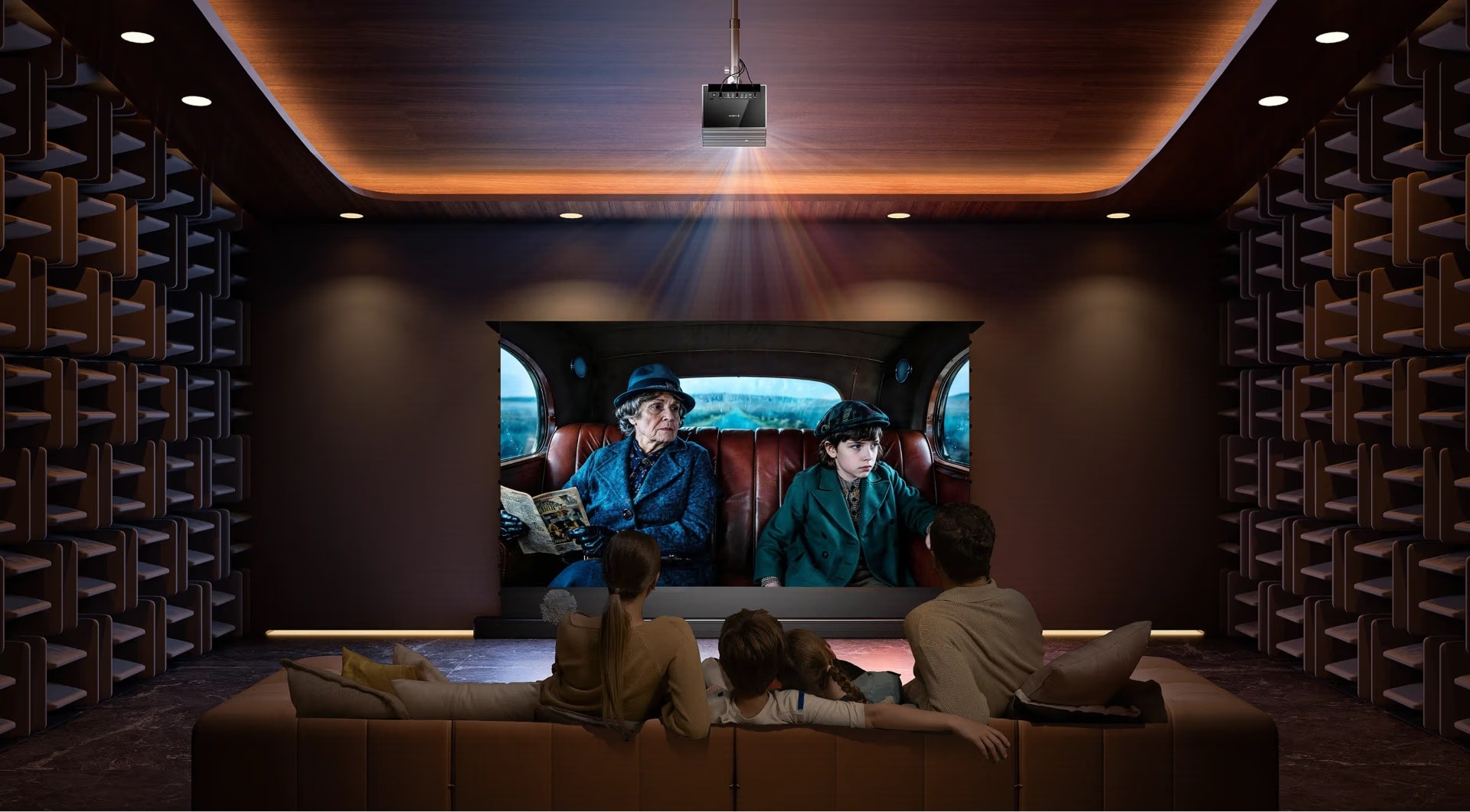
Calibration is the key to transforming a massive projected image into a true cinematic experience. By understanding your environment and fine-tuning your projector's baseline settings, you ensure that every shadow and highlight is displayed exactly as the filmmaker intended.
If you're looking for a projector that delivers accurate color, dynamic HDR tone mapping, and cinema-grade contrast right out of the box, modern RGB laser projectors such as the Valerion VisionMaster series can deliver highly accurate color and strong HDR performance with less manual tuning.