HDMI Splitter vs. HDMI Switch: Which One Do You Need?
November 11, 2026
When comparing an HDMI splitter vs. HDMI switch, the right choice depends on which side of your setup has more devices. The main difference between an HDMI splitter and switch comes down to signal direction: a splitter sends one source signal to multiple displays at the same time, while a switch lets you connect multiple sources to a single display.
If your priority is independent signal routing or viewing multiple sources on screen at once, your setup requires more than a basic HDMI switch or splitter. This guide covers how each device works, which specs to verify before buying, and which solution fits your viewing conditions.
HDMI Splitter vs. HDMI Switch: What’s the Difference?
|
Comparison |
HDMI Splitter |
Standard HDMI Switch |
|
Main Purpose |
Duplicate one source across multiple displays |
Select between multiple sources on one display |
|
Signal Direction |
1 input to multiple outputs |
Multiple inputs to 1 output |
|
Simultaneous Viewing |
Yes, mirrors the same source on all connected displays at once |
No, outputs one selected source at a time to a single screen |
|
Extended PC Desktops |
No, mirrors the image only |
No, toggles between active inputs only |
|
Typical Power Requirement |
Requires external USB or AC power to amplify and duplicate the signal |
Passive (unpowered) for short cable runs, or externally powered for high-bandwidth signals |
How to Read HDMI Inputs and Outputs
HDMI cables look identical on both ends, making it easy to plug a cable into the wrong port or buy a device that routes signals in the wrong direction. Use these four rules to read the ports and specs on your gear:
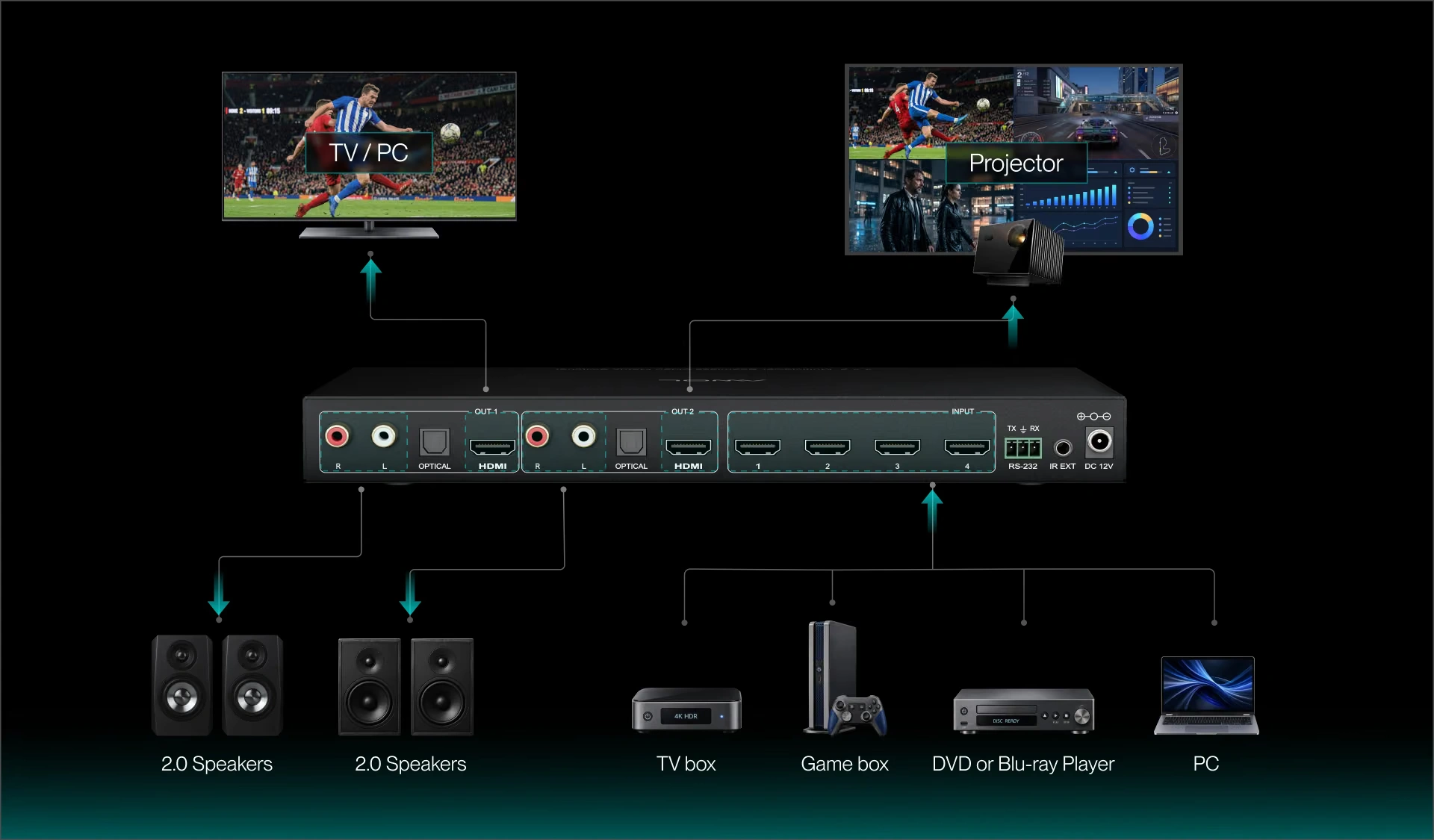
- Follow the One-Way Signal Path (Source → Input → Output → Display): HDMI video only travels in one direction. Run cables from your sources (PS5, Xbox Series X, Apple TV, Blu-ray player, or PC) into the HDMI IN (input) ports on your switch or splitter, and run cables from the HDMI OUT (output) ports to your displays (TV, projector, or monitor).
- Read the Port Shorthand (1×2 vs. 2×1): Manufacturers label HDMI boxes using an Inputs × Outputs formula. A 1×2 device is an HDMI splitter (1 source duplicated to 2 screens), while a 2×1 device is an HDMI switch (2 sources sharing 1 screen).
- Reserve the Audio Port (eARC/ARC): Most TVs and select projectors label one port eARC or ARC (Enhanced Audio Return Channel), which sends audio backward down the HDMI cable to a soundbar or AV receiver (supporting formats up to uncompressed Dolby Atmos and DTS:X on eARC).
- Check Signal Compatibility (HDCP, EDID & Scaling): Connected devices run automatic background checks before showing a picture:
- HDCP Handshake: Copy-protection verification. Make sure your source, switch or splitter, and display all support HDCP 2.2 or HDCP 2.3 so 4K streaming apps (Netflix, Disney+) and UHD Blu-rays don't trigger a black screen.
- EDID & Scaling: EDID is the profile a display sends to tell your source its maximum resolution and refresh rate. Because a basic splitter defaults to the lowest screen resolution connected, pairing a 4K TV with a 1080p projector requires a splitter with a built-in downscaler so each screen displays its native resolution at a shared refresh rate.
Which One Fits Your Setup?
One Source on Two Screens: Choose a Splitter
To watch the same content from a single streaming player or console on both a TV and a projector, choose an HDMI splitter. Because standard HDMI does not support Multi-Stream Transport (MST), your source device detects only one external sink and sends an identical mirrored signal to every output; it cannot play two separate shows at once.
What to do next: Check the native resolution and refresh rate of both displays before ordering a splitter:
- If both screens support 4K@60Hz: Any powered 1×2 splitter rated for matching bandwidth will work.
- If you are pairing a 4K TV with a 1080p projector: Choose an HDMI splitter with EDID management and a built-in 4K-to-1080p downscaler, and set your source device to a refresh rate supported by both screens. Without a built-in scaler, the splitter defaults to the lowest resolution detected and forces both screens down to 1080p.
Several Devices on One Screen: Choose a Switch
If a gaming console, streaming player, and Blu-ray player share a single projector or TV input, choose an HDMI switch. A switch lets you keep all source cables plugged in and select one active source at a time, either manually with a physical button, remotely with an IR controller, or automatically when a source powers on. A standard HDMI switch routes one source at a time and does not combine multiple feeds into a split-screen view.
What to do next: Inspect the back of your TV, projector, or AV receiver before buying:
- Count your available HDMI ports: Subtract one port if your soundbar or receiver uses the HDMI eARC/ARC port. If you still have enough open ports with the bandwidth your sources require, connect your devices directly.
- Size your switch with room to grow: If you are short on ports, count your active sources and pick a switch with at least one spare input (for example, choose a 4×1 for three devices).
Two Independent Computer Displays: Check Your Computer’s Outputs
When weighing an HDMI switch vs. splitter for a dual-monitor computer workstation, neither basic device will extend your desktop across two independent screens. Mirroring duplicates the exact same desktop onto a second monitor, whereas extending gives you two separate workspaces for different windows. Because a standard HDMI splitter only duplicates a single video output, both monitors will display the exact same screen.
What to Check Before Buying Either Device
Do not rely on a generic “4K” label alone when comparing models, many entry-level switches and splitters labeled “4K” cap out at 4K@30Hz, which disables HDR and causes choppy motion on modern consoles and streaming players. Match the specifications below to your equipment before purchasing:
|
Specification |
What to Check on Your Gear |
What to Buy |
|
Port Count |
Total number of source devices vs. display inputs |
1×2 or 1×4 for splitters; 3×1 to 5×1 for switches (leave at least 1 open input port for future gear). |
|
Bandwidth & Refresh Rate |
Maximum output of your sources (4K@60Hz streaming vs. 4K@120Hz console/PC gaming) |
18Gbps (HDMI 2.0) minimum for 4K@60Hz with HDR10/Dolby Vision; 48Gbps (HDMI 2.1) with VRR and ALLM support for PS5, Xbox Series X, and gaming PCs. |
|
HDCP Version |
Whether you stream paid 4K services or play UHD Blu-ray discs |
HDCP 2.2 or HDCP 2.3 compliance so protected 4K video passes through without handshake errors. |
|
EDID & Downscaling (Splitters) |
Whether your connected screens have different native resolutions |
A splitter with a hardware 4K-to-1080p downscaler and physical EDID DIP switches. |
|
Audio Routing & Extraction |
How your soundbar or AV receiver connects to your system |
HDMI audio pass-through (up to Dolby Atmos / DTS:X) if your display or receiver handles audio, or built-in Optical (TOSLINK) / RCA audio extraction if you use a projector without an eARC/ARC port. |
|
Power & Cable Length |
Total HDMI cable distance from source to screen |
An externally powered unit (USB or AC adapter) whenever total cable runs exceed 10 feet (3 meters) or carry 4K@60Hz/120Hz signals. |
When You Need More Than a Splitter or Switch
Different Sources on Different Screens: HDMI Matrix Routing
If you want to play a console game on a living room TV while someone else watches a streaming box on a home theater projector, without unplugging cables, neither a basic splitter nor a single-output switch can handle both tasks. An HDMI matrix combines multiple inputs and multiple outputs in one unit, allowing you to route any input source to any display independently, or mirror the same source on both displays at the push of a button.
Note that matrix port numbers (such as 4×2 or 4×4) only indicate how many inputs and outputs can be routed; a standard matrix still displays one source per screen unless it includes a built-in multiview processor.
Multiple Sources on One Screen: HDMI Multiview
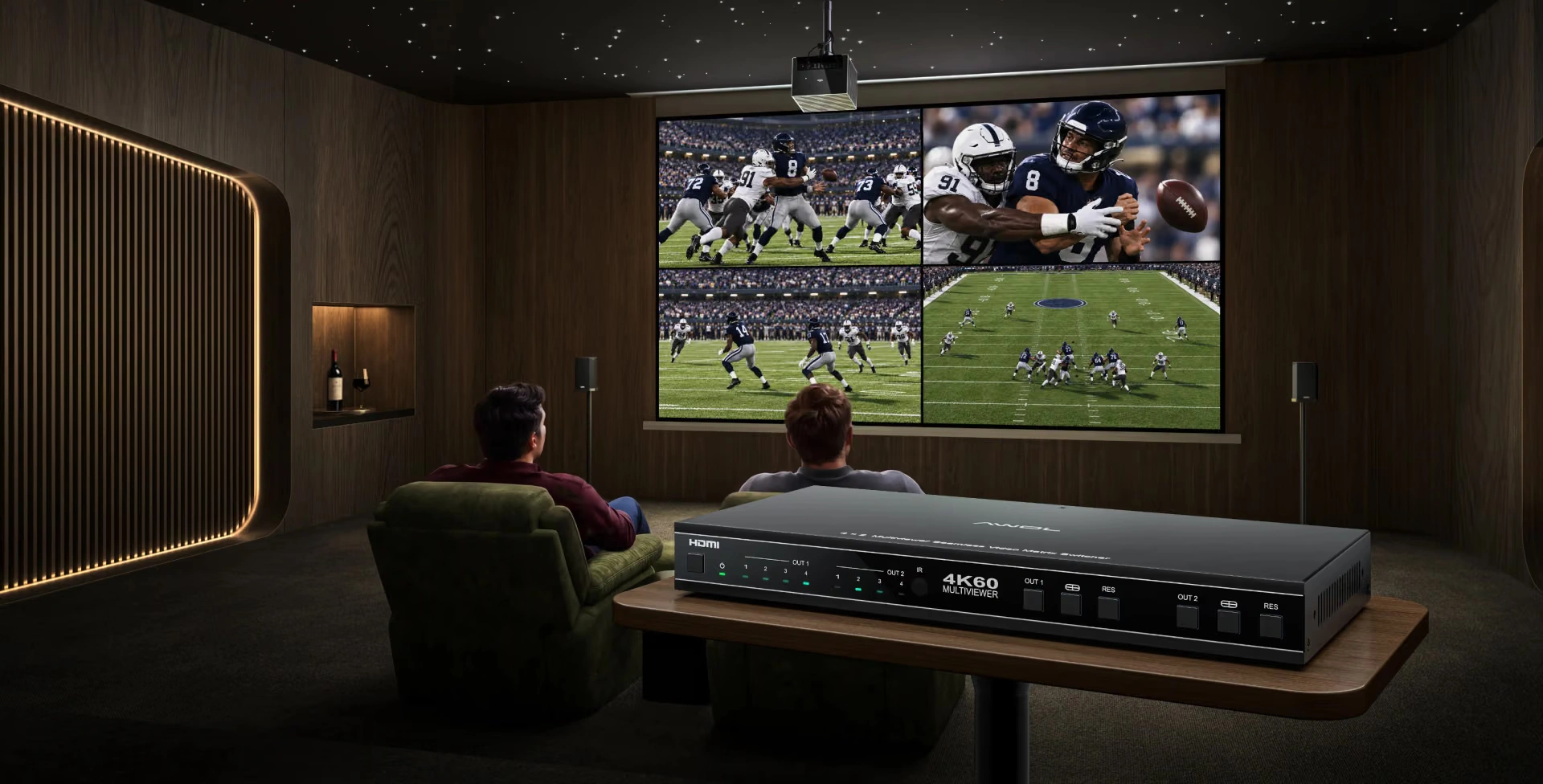
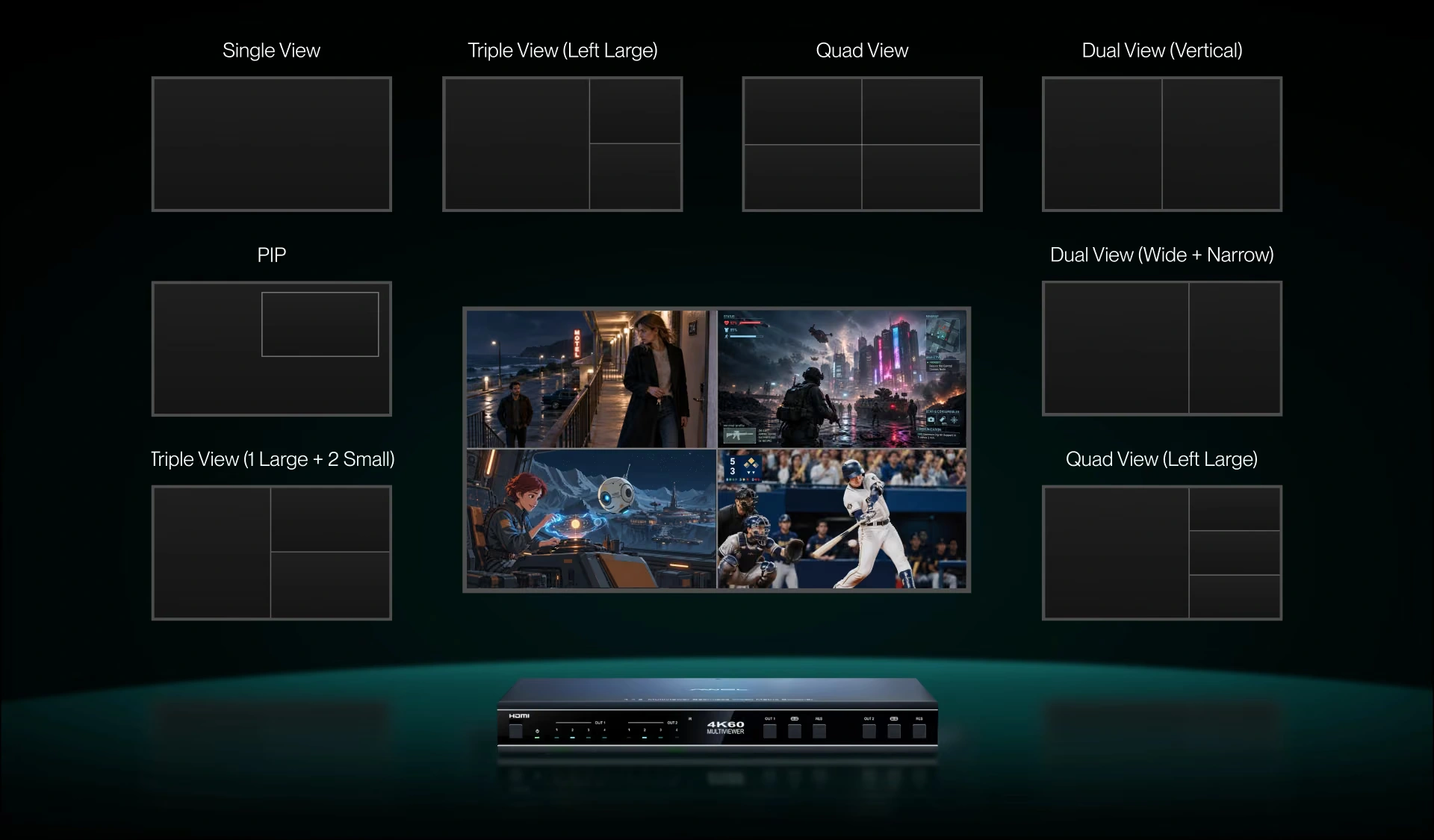
If you want to watch multiple live sports broadcasts at once or keep a console game beside a live stream on a large projection screen, you need an HDMI multiviewer. A multiviewer processes several live HDMI inputs simultaneously and combines them onto a single screen using Picture-in-Picture (PiP), side-by-side, or quad-view layouts.
Combining These Needs in One Device
In a multi-display home theater, such as a room pairing a daytime TV with a drop-down projection screen, or a media setup spanning two rooms, managing separate switches, splitters, and audio extractors quickly creates wiring bottlenecks. You may want a single full-screen movie on the projector, a four-game split screen on game day, and direct audio output to an external sound system that does not rely on the projector's built-in speakers.
We designed the AWOL Valerion 4K60Hz 4x2 Multiviewer Seamless Video Matrix Switcher to handle independent two-screen routing, multi-source viewing, and external audio integration in a single unit:
- Independent 4×2 Matrix Routing: Connect up to four HDMI sources and route them independently or simultaneously to two displays (such as a TV and a projector) at resolutions up to 4K@60Hz.
- Eight Multiview Layouts: Display up to four sources at once on a single screen, including quad-view, side-by-side, and Picture-in-Picture, while simultaneously sending a separate single-source or mirrored feed to your second display.
- Seamless Single-Screen Switching: When switching between sources in full-screen mode, frame transitions occur instantly without a multi-second blank screen while the display renegotiates the signal.
- Dedicated Audio Extraction: Built-in Optical (TOSLINK) and RCA L/R audio outputs let you route audio directly to an external soundbar, amplifier, or AV receiver, solving audio routing for projectors that lack HDMI ARC or sit far from your audio rack.
If your setup combines two displays with multi-source viewing, review the AWOL Valerion 4K60Hz 4x2 Multiviewer Seamless Video Matrix Switcher port layout and support multiview modes to match it to your room configuration.
Final Verdict: HDMI Splitter vs. Switch
Choosing the right HDMI distribution device comes down to matching your signal flow:
- Choose an HDMI Splitter (1×2 or 1×4) if you have one source that you want to mirror on two or more screens at the same time (and choose a model with a built-in downscaler if mixing 4K and 1080p displays).
- Choose an HDMI Switch (3×1 or 5×1) if you have multiple sources competing for one display input and only need to watch one device at a time.
- Choose a Multiview Matrix Switcher (4×2) if you want to connect multiple sources to two displays independently, display up to four sources on one screen at once, or extract audio directly to a soundbar or receiver.
Frequently Asked Questions (FAQs)
Can an HDMI Switch Work in Reverse?
Yes, an HDMI switch can work in reverse only if it is explicitly built as a bidirectional HDMI switch. When connected in reverse (1 input to 2 outputs), a bidirectional switch lets you toggle a single source between two displays one at a time; it cannot display video on both screens simultaneously like an active HDMI splitter.
Will an HDMI Splitter or Switch Reduce Picture Quality?
No, a properly rated HDMI splitter or switch does not degrade image quality because HDMI carries a digital signal. Picture loss or resolution drops only occur when a device's bandwidth rating is lower than the source signal.
Can You Connect an HDMI Switch to a Splitter?
Yes, you can daisy-chain an HDMI switch into an HDMI splitter. Connect your source devices to the switch's inputs, then run a short Certified High Speed HDMI cable from the switch's output into the splitter's input.
Why Is My HDMI Splitter Showing No Signal?
If an HDMI splitter shows “no signal” on one or both screens, check these splitter-specific causes: Unpowered splitter, resolution mismatch between displays, refresh rate mismatch.
Does an HDMI Switch Automatically Detect Connected Devices?
Yes, most powered HDMI switches include automatic input detection that switches to whichever source is powered on most recently.
Does an HDMI Switch Support Dolby Atmos and Surround Sound?
Yes, HDMI 2.0 and HDMI 2.1 switches pass through multichannel audio formats including Dolby Atmos, Dolby TrueHD, DTS-HD Master Audio, and DTS:X. If your display lacks an eARC/ARC port to forward that audio to your sound system, choose a switch or matrix with built-in Optical or HDMI audio extraction.
What Is the Difference Between a Manual and Automatic HDMI Switch?
A manual HDMI switch changes inputs only when you press the physical selector button on the unit or use the included IR remote, preventing accidental input changes while you are watching a movie or gaming. An automatic HDMI switch monitors port voltage and jumps to newly powered-on devices automatically, while typically still offering a button or remote for manual control.
Will an HDMI Switch Cause Input Lag While Gaming?
No, a standard pass-through HDMI switch adds negligible to zero measurable input lag because it routes the digital signal directly without processing video frames.
Why Is My HDMI Switch Not Detecting My Connected Device?
Check the HDMI cable connections, power supply, selected input, source device settings, and compatibility between the connected devices.
Exclusive Welcome Benefit
Unlock Your AWOL Valerion Cinema Experience
Subscribe to unlock your game day guide and early access to seasonal deals

Points & Rewards

Member Pricing

Priority Support

Early Access
New subscribers receive a $100 discount code by email.
Discover More Insights