Projector Remote Not Working? Fixes by Symptom
November 11, 2026
If your projector remote is not working, start by checking the batteries, confirming that the projector has power, and noting which buttons fail. A remote that cannot turn the projector on needs a different troubleshooting path from one that powers it on but cannot navigate menus.
Projector remotes may use infrared (IR), Bluetooth, or both. An obstructed IR receiver and a lost Bluetooth connection can look similar from your seat, but they require different fixes.
Start With These Quick Checks
Before changing settings, work through these checks:
- Check the batteries. Use the type specified for your remote, match the positive and negative markings, and try a known-good set.
- Look for a stuck button. Check whether any button remains pressed down or fails to release normally.
- Let the projector finish starting up or shutting down. It may not accept every command during these transitions.
- Try the projector’s physical controls, if available. Follow the instructions for your model rather than holding buttons at random.
- Identify the scope of the problem. Test Power, Home, navigation, and volume separately. Note whether the failure affects every function or only one interface.
If the projector also fails to respond to its physical controls, the problem may involve the projector itself. Repeatedly pairing the remote will not address a projector that has no power or is not responding.
Find the Path That Matches Your Symptom
Use your observations to choose the next check. These symptoms narrow the investigation; they do not prove that a particular component has failed.
|
What You Observe |
What to Check Next |
|
No response from any button |
Battery power, stuck buttons, and whether the remote uses IR or Bluetooth |
|
The remote cannot turn the projector on but works after another startup method |
The projector’s standby control method and IR receiver location |
|
Power works, but navigation or smart functions do not |
Bluetooth pairing and the interface you are trying to control |
|
The remote works intermittently or only nearby |
Battery condition, obstructions, lighting, and connection stability |
|
The problem started after replacing batteries |
Battery installation, followed by pairing if required |
No Buttons Work
First, determine whether the remote appears to have power. If it normally has an indicator light, press a button and watch for a response. No light can point you toward a battery or remote problem, but some remotes do not have a visible indicator at all.
A blinking light is useful evidence, too, but it does not establish that the projector received the command. It may indicate only that the remote attempted to transmit.
Check the battery compartment for obvious damage or leakage. If you find either, stop using the remote and contact support for guidance rather than opening the remote’s housing.
Once you have checked the batteries and buttons, identify the control method in your manual:
- IR: The remote sends an infrared signal to a receiver on the projector. Aim toward that receiver and remove anything blocking the path.
- Bluetooth: The remote must be paired with the projector. Pointing it more precisely will not restore a lost pairing.
- IR and Bluetooth: Different functions or operating states may use different methods. Test startup and menu navigation separately.
If the control method is unclear, use the projector model and remote identification to find the correct manual before trying a pairing shortcut.
The Remote Will Not Turn the Projector On
A remote can work normally once the projector is running yet fail to start it. On models that use IR for startup, the first check is the path between the remote and the IR receiver.
Find the receiver’s location in the manual. Do not assume it sits beside the lens: its position varies by projector. Aim toward it from a closer, unobstructed position within the specified operating range.
Consider the installation as well. A shelf edge, cabinet, or nearby object may block the receiver even though the projected image is perfectly visible. Strong sunlight or certain lighting can also interfere with IR reception.
If the projector has a supported physical power button, try starting it that way. Then test the remote’s navigation buttons. If they work after startup, that result helps narrow the issue to startup control rather than complete remote failure.
If neither startup method works, follow the projector’s power troubleshooting instructions. Avoid repeatedly disconnecting power, especially while the projector is shutting down or updating.
If you reposition the projector to clear the receiver, check the image alignment afterward. Our guide to adjusting your projector to fit the screen explains how to correct image size, position, and shape.
Power Works, but Navigation or Smart Functions Do Not
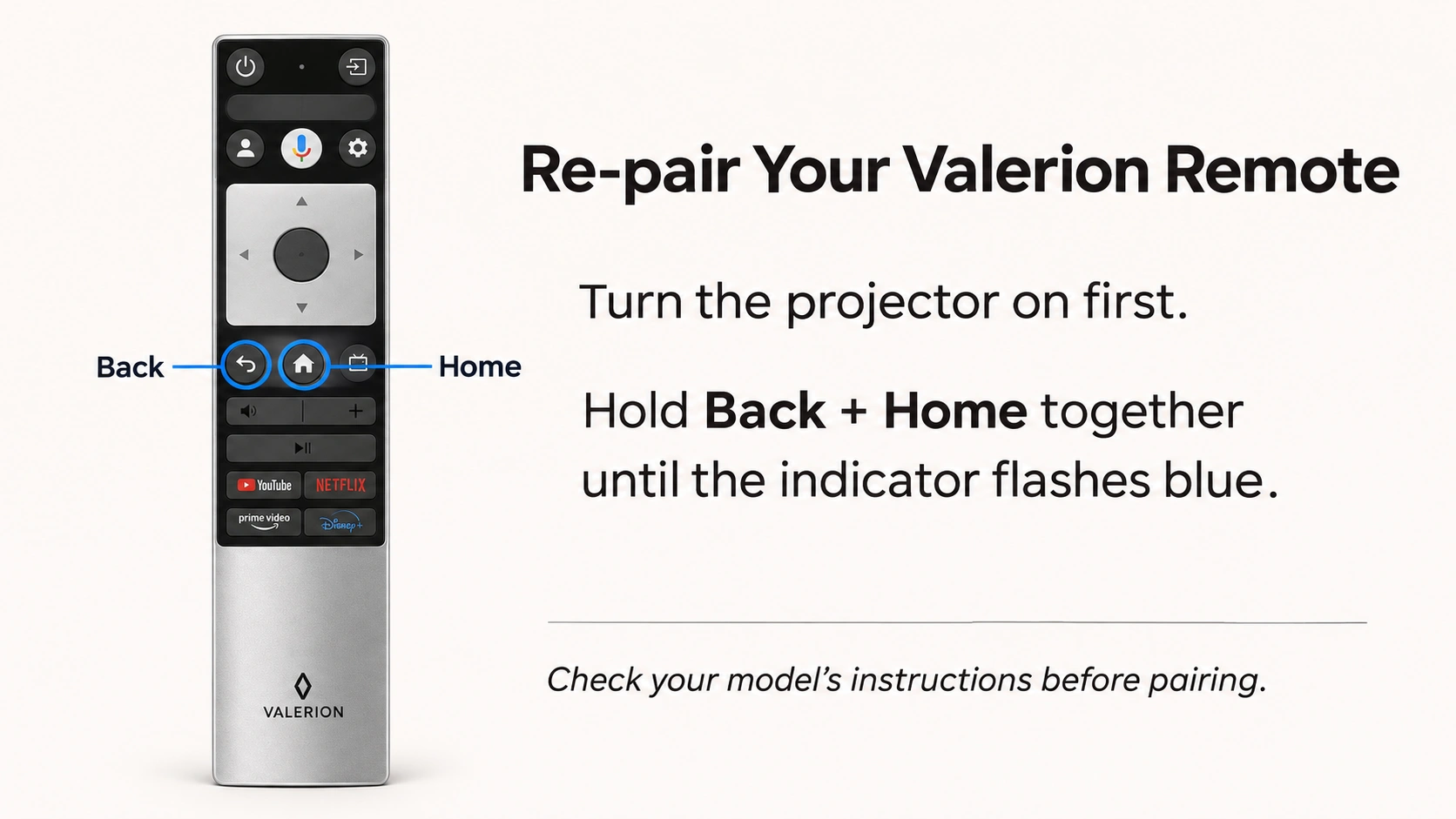
When the Power button works but the directional buttons do not, check whether the remote uses Bluetooth for navigation. Successful power control does not necessarily confirm a working Bluetooth connection.
Also identify where navigation fails. Can you open the projector’s own settings but not navigate an external streaming device? Does only one app stop responding? Those observations point to a narrower control or software issue than a remote that fails everywhere.
For a Bluetooth remote, follow the pairing instructions for the exact projector model:
- Put the projector in the operating state required by its instructions.
- Use the specified pairing buttons or menu.
- Watch for the required confirmation.
- Test navigation after pairing completes.
Button combinations differ between models. A flashing indicator may mean pairing has started, so check that control actually returns before treating the process as successful.
Using Your Valerion Remote: IR and Bluetooth
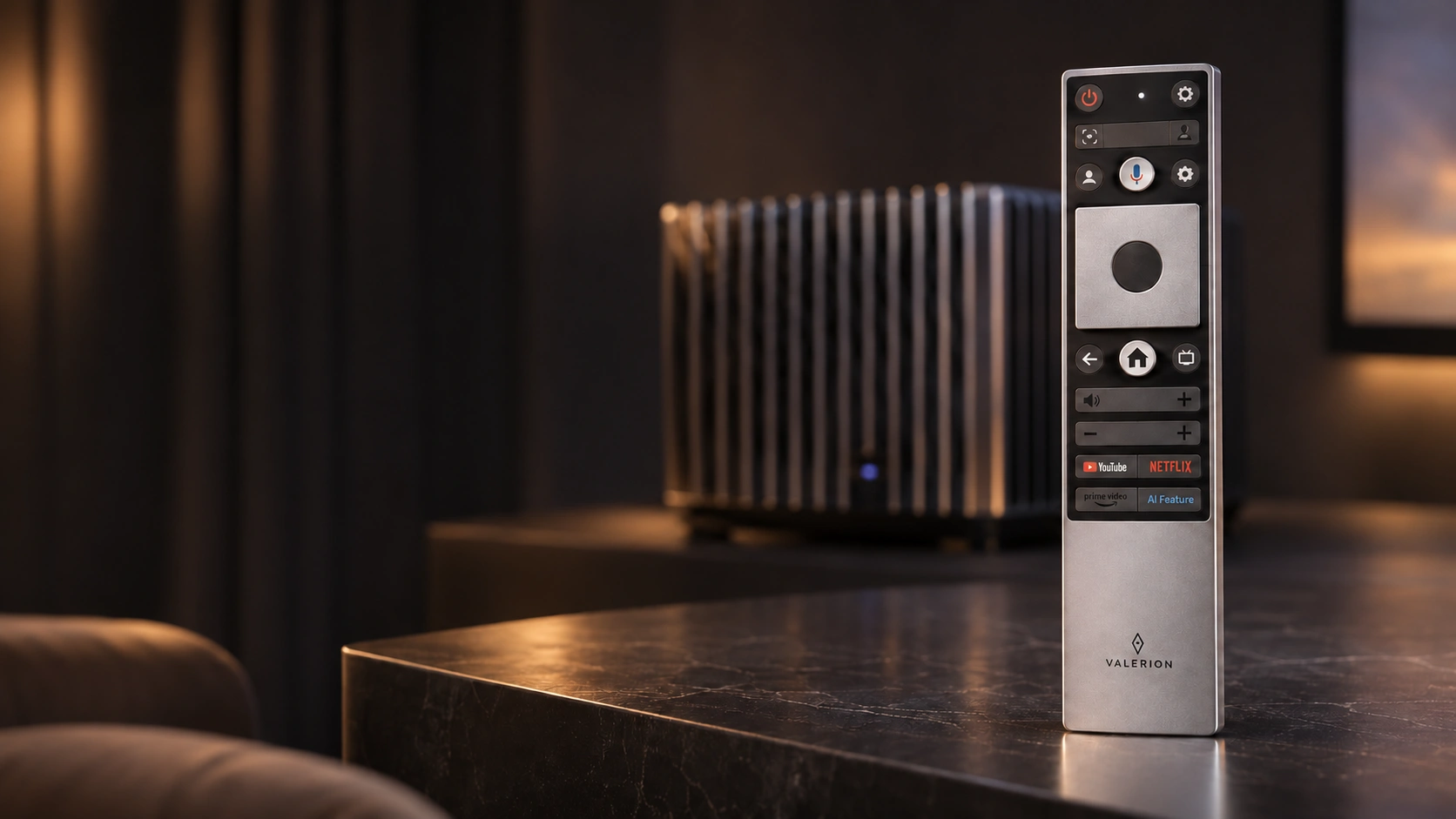
Your Valerion remote uses IR to turn the projector on and Bluetooth for control once it is running. That distinction helps explain why startup and navigation can behave differently.
For the remote configuration shown in our remote control troubleshooting guide:
- To turn the projector on: Aim the remote toward the IR receiver on the back of the projector.
- After startup: The remote should operate through Bluetooth.
- Check the indicator: Red blinking indicates IR transmission; blue blinking indicates Bluetooth transmission.
If Bluetooth control does not resume after startup, hold Back + Home simultaneously until the indicator flashes blue to begin re-pairing. Then check whether navigation works.
If your remote’s buttons or indicator behavior differ from the guide, check your model’s manual or contact our support team for the correct procedure.
The Remote Works Intermittently or Only at Close Range
Intermittent operation is easier to investigate when you change one condition at a time. Note whether moving closer, changing your aim, or using a different interface changes the behavior.
For IR control, test from a position with a clear path to the receiver. Check the battery condition and temporarily reduce strong light falling on the receiver. Follow your model’s specified distance and angle limits rather than assuming every remote has the same range.
Some projectors also have settings that enable or disable particular remote receivers. Check this only if your model’s manual documents the option.
For Bluetooth control, follow the model’s reconnection or restart procedure. If the remote repeatedly disconnects, record when it happens: after standby, during one app, or throughout normal use. That pattern gives support more useful information than “the remote sometimes stops.”
The Remote Stopped Working After a Battery Change
Reopen the battery compartment and check the polarity markings before changing any projector settings. Confirm that the replacements are the correct type and known to work.
Next, observe whether the remote behaves differently from before: does its indicator respond, can it turn the projector on, or do only navigation buttons fail?
Some models may need re-pairing after a battery change, but battery replacement does not universally erase Bluetooth pairing. If the symptoms indicate a lost connection, use the pairing procedure for your model. Valerion owners with the remote described above can follow the Back + Home procedure after turning the projector on.
Still Not Working? Prepare for Support
After the basic checks and the correct pairing procedure, avoid repeating the same steps indefinitely. Gather the details that will help support distinguish a remote problem from a receiver, connection, or projector issue:
- Projector model and remote model or identifying photo.
- Buttons that work and buttons that fail.
- Indicator color or blinking behavior, if present.
- Whether the projector responds to its physical controls.
- When the issue began, including any battery change or software update.
- Troubleshooting steps already completed.
A short video showing the button press and projector response can help if requested.
For help with your Valerion projector, contact our team through the Valerion Help Center. Share your observations so we can help you identify the next step.
Before ordering a replacement remote, confirm compatibility with your exact model and the functions you need. A remote that supports basic IR commands may not provide Bluetooth navigation or voice control.
Frequently Asked Questions
Can a Phone Camera Tell Me Whether My Remote Is Broken?
A compatible camera can show whether the remote emits infrared light, but it cannot fully diagnose the remote.
First, confirm that the camera can detect IR using another working IR remote. Then point the projector remote’s emitter toward the camera and press a button that uses IR. Some cameras filter infrared, and some dual-mode remotes use IR only for certain commands.
A visible flash shows IR emission. It does not prove that the command is correct or that the projector receives it. No visible flash is inconclusive if the camera or selected button is unsuitable for the test. This method does not test Bluetooth.
Can I Control My Projector Without the Remote?
Possibly. Physical controls may provide basic access, while compatible smart platforms may support a mobile remote.
For supported Android TV devices, the Google TV app can provide navigation after pairing. Your phone and device must be on the same network for the Wi-Fi connection, and setup requires entering a code displayed on the screen. Follow Google’s virtual remote setup instructions.
Check your projector’s platform and model support first. A mobile app may not replace every projector-specific button, and it may not help if the device is offline or cannot complete pairing.
If your goal is to play content from your phone, our guide to connecting a phone to a projector covers wired and wireless options. Casting or mirroring content is separate from using your phone as a remote and may still require access to the projector’s controls.
Should I Factory Reset the Projector?
A factory reset should not be your first response to an unresponsive remote. It can erase settings and leave you needing to complete setup while remote control is still unavailable.
Try the relevant battery, signal, and pairing checks first. If they fail, contact support to confirm whether a reset is appropriate and how you will control the projector afterward.
If your Valerion remote still does not respond, send our support team your model details, the symptoms you observed, and the checks you completed. Those details will help us guide you toward the right next step.
Exclusive Welcome Benefit
Unlock Your AWOL Valerion Cinema Experience
Subscribe to unlock your game day guide and early access to seasonal deals

Points & Rewards

Member Pricing

Priority Support

Early Access
New subscribers receive a $100 discount code by email.
Discover More Insights