Halloween Projector Decorations: Easy Ideas for Walls and Windows
October 23, 2026
A home theater projector can turn a blank wall into a haunted hallway, add drifting ghosts behind a party table, or create an animated window display for trick-or-treaters. For a simple setup, all you need is a suitable projection surface, Halloween images or video, and a way to play them.
Start with one display area. A wall or your existing movie screen is the easiest option for guests inside the house. A window display takes more preparation because people view it from the opposite side of the projection material.
Choose Your Halloween Projection Setup
Decide where people will watch before choosing your content. A detailed haunted-library scene works well as an indoor backdrop, while a large ghost or moving silhouette is easier to recognize through a window.
|
Setup |
Best use |
Projection surface |
Content to look for |
|
Haunted wall |
Living room or entryway decoration |
Flat, light-colored wall |
Moving shadows, ghosts, bats, or animated portraits |
|
Party backdrop |
Background behind snacks, seating, or a photo area |
Wall or existing projector screen |
Haunted forest, castle, stained glass, or slow atmospheric animation |
|
Haunted window |
Display viewed from outside |
Semi-translucent window projection material |
Window scenes, silhouettes, or clearly framed characters |
A single rectangular display can play these scenes without projection-mapping software. Fitting separate animations precisely onto several windows, pumpkins, or architectural features is a more involved project.
1. Turn a Blank Wall Into a Haunted Scene
Choose a wall with enough open space for the image and a clear path from the projector. Pale, relatively smooth surfaces make a useful starting point; strong wall colors and heavy texture can change how the scene looks.
There are two approaches to choosing your visuals.
A complete background scene fills the projection area with an environment: a foggy forest, an abandoned corridor, or a haunted mansion. The rectangular picture becomes part of the decoration, so this approach works particularly well on an existing movie screen.
An isolated effect places a bright character or shape against a black background. Drifting ghosts, crawling shadows, and passing bats can appear to occupy the wall rather than sit inside a conventional video frame.
Black-background content helps the surrounding image blend into a dark room, but it does not guarantee an invisible border. Projectors still produce some light in black areas, and nearby lamps can make the image boundary more noticeable.
Test a short clip before committing to the display. If a gray rectangle distracts from the effect, reduce light falling on the wall, check that the video background is actually black, or switch to a complete scene that uses the whole frame.
2. Create a Halloween Party Backdrop
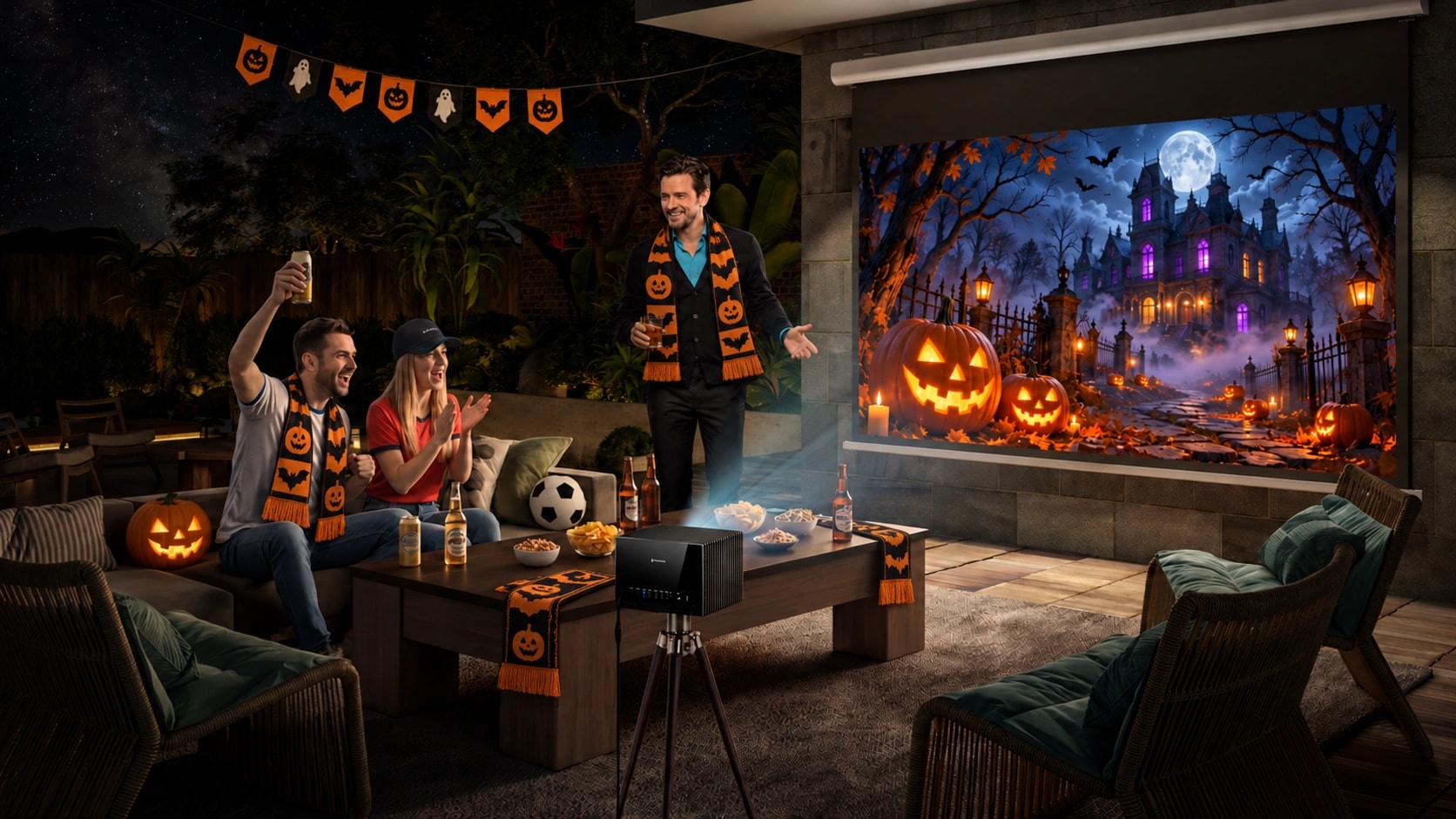
A slow animated backdrop can establish the mood while leaving guests free to talk, eat, and move around. Try a moonlit forest behind the seating area, an animated stained-glass scene above a sideboard, or a haunted library behind the snack table.
For a background that runs throughout the evening, choose content with steady movement and relatively consistent brightness. Rapid cuts and sudden flashes tend to pull attention away from the party. Large shapes also remain recognizable when people see the display from across the room.
Position the image above or beside the busiest area so guests do not constantly walk through the beam. Keep decorative lamps away from the projection surface where possible: a light beside the screen can wash out the scene even when the rest of the room feels dark.
If you already have an AWOL Valerion Max, its optical zoom and vertical lens shift can help size and position the backdrop. Optical zoom adjusts image size within the supported placement range; vertical lens shift moves the image up or down while the projector stays level. It does not provide horizontal lens shift, so sideways placement still needs planning. Check the Valerion Placement Calculator before rearranging the room.
3. Make a Haunted Window for Trick-or-Treaters
For a window display viewed from outside, place the projector inside the house and project onto semi-translucent material stretched across the window.
Clear glass alone will not catch the image effectively. You need material that receives the projection while allowing viewers on the other side to see it. Purpose-made rear-projection window fabric is an option; other translucent materials need testing for visibility, texture, and bright spots. The AtmosFX window projection guide explains this setup.
Choose a window with both outdoor visibility and enough indoor space for the projector. Then:
- Hang the projection material as flat as practical across the display area.
- Position the projector indoors and check that the image covers the intended area.
- Play a window-oriented scene and adjust its size and focus.
- Reduce nearby indoor light and light shining directly onto the window.
- Go outside and inspect the display from the position visitors will actually use.
Check image direction from outside, especially if the scene contains text. Apply horizontal mirroring through the projector or playback software if needed. Some content may already be prepared for rear projection, so inspect the result before flipping it.
Also look for a bright hotspot where the lens is visible through the material. Changing the material or projector position may help, but recheck focus and shape after any adjustment.
Check the Available Distance
A window that looks ideal from the street may leave too little room for the projector behind it.
AWOL Valerion Max has a native 0.9–1.5:1 throw-ratio range. As an example, an 8-foot-wide complete projected image requires approximately 7.2–12 feet between the lens and projection surface. That calculation uses image width, not window height or screen diagonal.
Measure the room before choosing a window display. A living-room wall or existing screen may be a better option when indoor depth is limited.
Choose Halloween Images and Videos That Suit the Surface
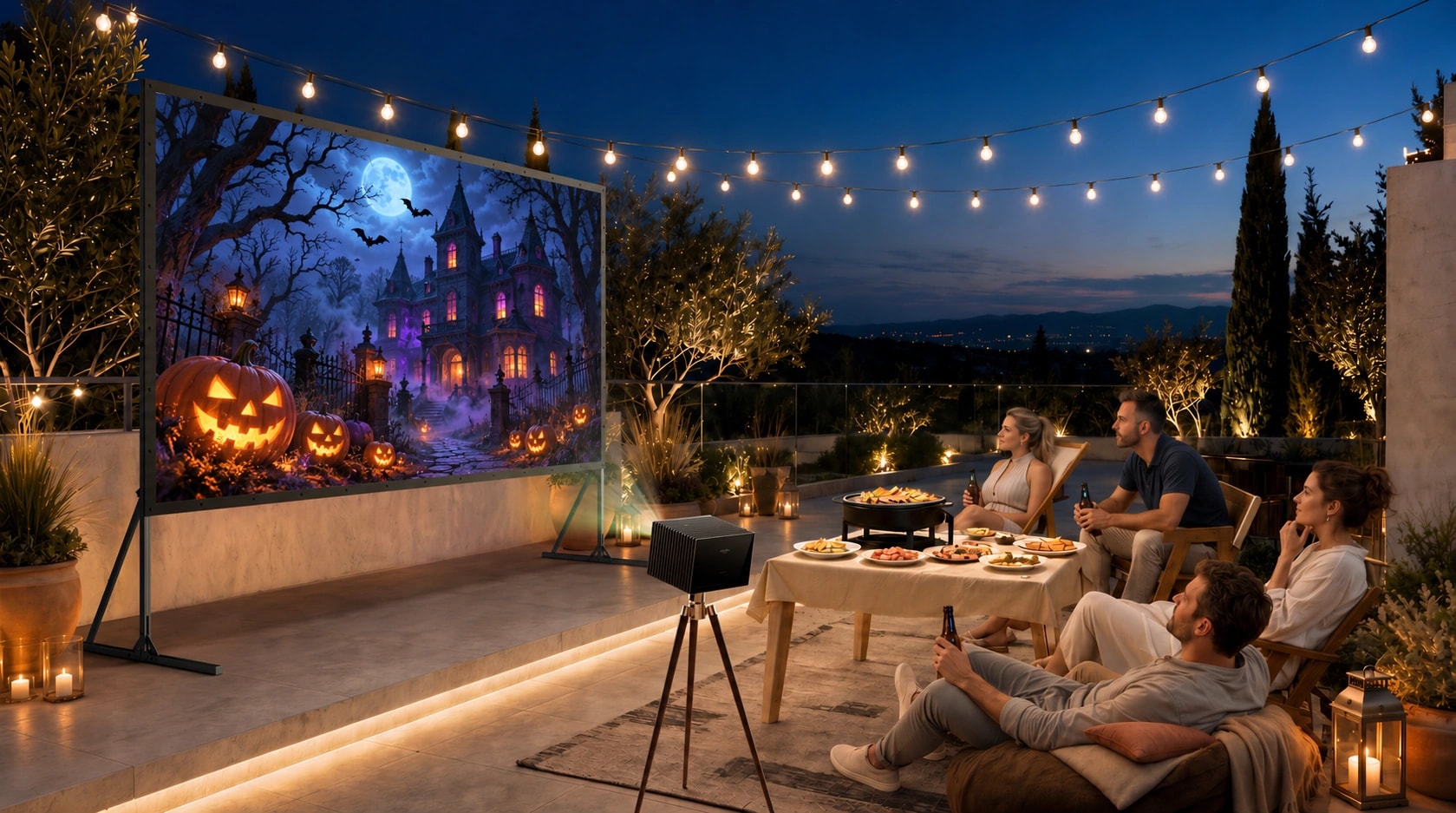
Still images are useful for a haunted portrait, spooky landscape, or stained-glass decoration. Videos add movement, but the scene needs to remain effective throughout playback—not just in its preview image.
Before choosing a file, check:
- Display format: Is it intended for a wall, window, screen, or prop?
- Orientation: Does it suit your horizontal or vertical display area?
- Background: Is it a complete scene or an isolated effect on black?
- Movement: Will it work as quiet atmosphere or an attention-grabbing feature?
- Loop transition: Does the end return smoothly to the beginning?
- Audio: Does it include sound you want playing throughout the gathering?
Dedicated suppliers offer digital decorations for different display styles. Check the intended use and license before selecting content.
For a family gathering, preview the entire sequence. A gentle-looking opening may lead to a sudden scare later in the video.
Set Up Playback Before Guests Arrive
A laptop or external media player connected through HDMI gives you a practical way to play images and videos. AWOL Valerion Max supports external HDMI sources; the HDMI connection instructions explain how to select the connected input.
Choose playback software that supports full-screen display and repeat playback. Then test what happens when the video ends.
Watch for a progress bar, filename, desktop, or menu appearing between repetitions. These interruptions can break the effect even when the projection itself looks good. A longer sequence may reduce how often controls appear, while a suitable external player can provide another playback route. Behavior depends on the player, so verify your actual setup rather than assuming every device loops cleanly.
If you use a computer, keep it connected to power and prevent sleep or notifications from interrupting the display. If you plan to use a projector’s USB playback or a streaming app, check its file compatibility and repeat controls in advance.
Fix the Problems That Spoil the Effect
|
Problem |
What to check |
|
The scene looks washed out |
Light falling on the surface, wall color, projection material, and image size |
|
A bright rectangle surrounds the ghost |
The file’s background, projector black level, and ambient light |
|
The image will not fit |
Lens-to-surface distance, zoom range, and content orientation |
|
The window scene looks backward |
Rear-projection content orientation and horizontal mirroring |
|
Controls appear between loops |
Playback settings, file length, and the selected player |
|
Guests keep casting shadows |
Projector position and the route between the lens and display |
Once the display works, leave the projector and surface in position. Moving either can change the fit and focus.
For the easiest first setup, use the wall or screen already available in your home. Pick one scene, test the full playback cycle, and inspect it from your guests’ viewing position. A well-placed animation can give the room a Halloween atmosphere without turning the evening into a complicated projection project.
Member Benefits
Bring Your Cinema Experience Further
Subscribe and receive a $50 Welcome Benefit plus 4 pairs of 3D glasses, along with exclusive Valerion updates.

Points & Rewards

Member Pricing

Early Access

Priority Support
Discover More Insights