Why Does HDR Make My Screen Darker? Causes and Fixes for TVs, Monitors, and Projectors
July 21, 2026
You finally set up your new HDR display expecting blinding highlights and rich, vibrant color, but instead the picture looks dim, flat, or washed out. If you're wondering why does HDR make my screen darker instead of brighter, the short answer is that HDR isn't actually broken; it's working exactly as designed, just not the way most people expect. Here's what's really happening, and how to fix it.
Quick Answer: HDR doesn't make your entire picture brighter; it expands the range between your darkest blacks and brightest highlights while keeping everyday scenes at a realistic baseline. If your image looks too dark or HDR looks washed out, the usual culprits are tone mapping, hardware brightness limitations, or a setting like Eco Mode quietly capping your panel's output.
Why Does HDR Look Darker Than SDR?
Standard Dynamic Range (SDR) content has always played by loose rules. Since SDR doesn't specify an absolute brightness target, your display is free to crank the backlight up across the whole image — mid-tones included — to make everything look punchy and bold. That's why a maxed-out SDR picture can feel more consistently "bright" at a glance.
HDR works differently. It's built on the PQ (Perceptual Quantizer) curve, which ties brightness values to real-world, absolute nit levels rather than letting the display decide. This means normal indoor scenes, faces, and mid-tones are deliberately anchored to a realistic baseline, typically somewhere around 100 to 200 nits, instead of being pushed to the display's maximum output.
That restraint is intentional. It preserves "headroom" so the display has somewhere to go when a genuinely bright highlight, like a sunlit window or an explosion, appears on screen. Understanding the difference between HDR and SDR brightness standards makes it much easier to see why an HDR scene can look comparatively muted even though it's technically capable of far brighter peaks.
In short: SDR trades accuracy for consistent brightness. HDR trades consistent brightness for accuracy and contrast, which is exactly why it can look darker at first glance.
How HDR Tone Mapping Changes Perceived Brightness
Here's where most of the "why is my HDR so dark" confusion actually comes from. HDR content is often mastered assuming a display that can hit 1,000, 4,000, or even 10,000 nits of peak brightness. Very few consumer displays can actually do that. Most TVs, monitors, and projectors top out well below those numbers, and peak brightness varies enormously between models.
When a video signal is mastered for 4,000 nits but your display can only output 400, something has to give. That's where tone mapping comes in. Your display's processor takes the incoming signal and compresses the average picture level so that highlights don't just clip into flat, detail-less white blobs.
It's a translation process, not a flaw. The algorithm is doing its best to preserve as much of the original creative intent as your hardware physically allows. Learning roughly how HDR tone mapping works helps explain why the same piece of content can look noticeably different. and often dimmer, from one display to the next, even when both are technically "HDR compatible."
How to Fix HDR That Looks Too Dark
The good news is that most dark or dull HDR pictures are often due to settings, not defective hardware. Here's how to correct it depending on your device.
Windows HDR Settings (Monitors & PC)
Windows has a well-known quirk sometimes called the "toggle tax": once you flip on the global HDR setting, the SDR content on your desktop, browser windows, and most apps can suddenly look grey, flat, and washed out. This happens because Windows doesn't automatically know what "paper white" should look like on your specific panel. To fix it, go to Settings > System > Display > HDR, and adjust the "SDR content brightness" slider until white backgrounds and text look natural again, rather than dim or blown out. It's a manual calibration step Windows should really do for you, but doesn't.
PS5 and Xbox HDR Calibration
Console HDR calibration screens are a common trap. Both PS5 and Xbox prompt you to adjust a brightness slider "until the logo is barely visible", but on lower-tier TVs without strong local dimming, following that instruction too literally crushes shadow detail and blacks across your entire game library. A better approach is to look up your TV's actual tested peak brightness and calibrate against that real number, instead of trusting the on-screen prompt alone.
If the picture is severely dark, flickering, or dropping out entirely rather than just dim, it's also worth checking HDMI bandwidth compatibility, since an underpowered cable or port can bottleneck the signal HDR needs to display correctly.
Smart TV and Streaming Settings
If you're streaming through Netflix, Apple TV, or a similar app and HDR still looks dim, check your TV's picture settings menu for anything labeled Eco Mode, Energy Saving, or Ambient Light Sensor. These features are usually enabled by default and quietly throttle your panel's brightness output to save power, directly undercutting the highlights HDR is supposed to deliver. Turning them off completely is one of the single most effective fixes available.
Why HDR Looks Darker on Projectors
Projectors face a genuinely different physical challenge than TVs or monitors. Understanding that difference goes a long way toward answering why HDR is dark on the projector for so many home theater owners.
Projector Brightness vs. HDR Requirements
Unlike a TV, which emits light directly from the panel, a projector relies on reflected light bounced off a screen. That light also has to cover a much larger surface area than a 55- or 65-inch panel. The result is a natural brightness deficit: most consumer projectors max out around 100 to 150 nits, compared to the 700-1,000+ nits many flat panels can reach.
When a projector's tone mapping engine has to compress a 4,000-nit HDR signal down into that much smaller range, the compression is far more aggressive than what a bright TV needs to do, which is exactly why HDR on projectors tends to look noticeably dimmer and flatter than the same content on a television.
HDR Settings for Better Projector Performance
Most projectors include a dedicated HDR Brightness or Tone Mapping slider in the picture menu. Start there rather than adjusting standard brightness or contrast controls, which weren't built with HDR's absolute brightness targets in mind. Selecting the correct laser or lamp power mode for your room, and adjusting gamma to suit a dark viewing environment, can also recover a meaningful amount of perceived punch.
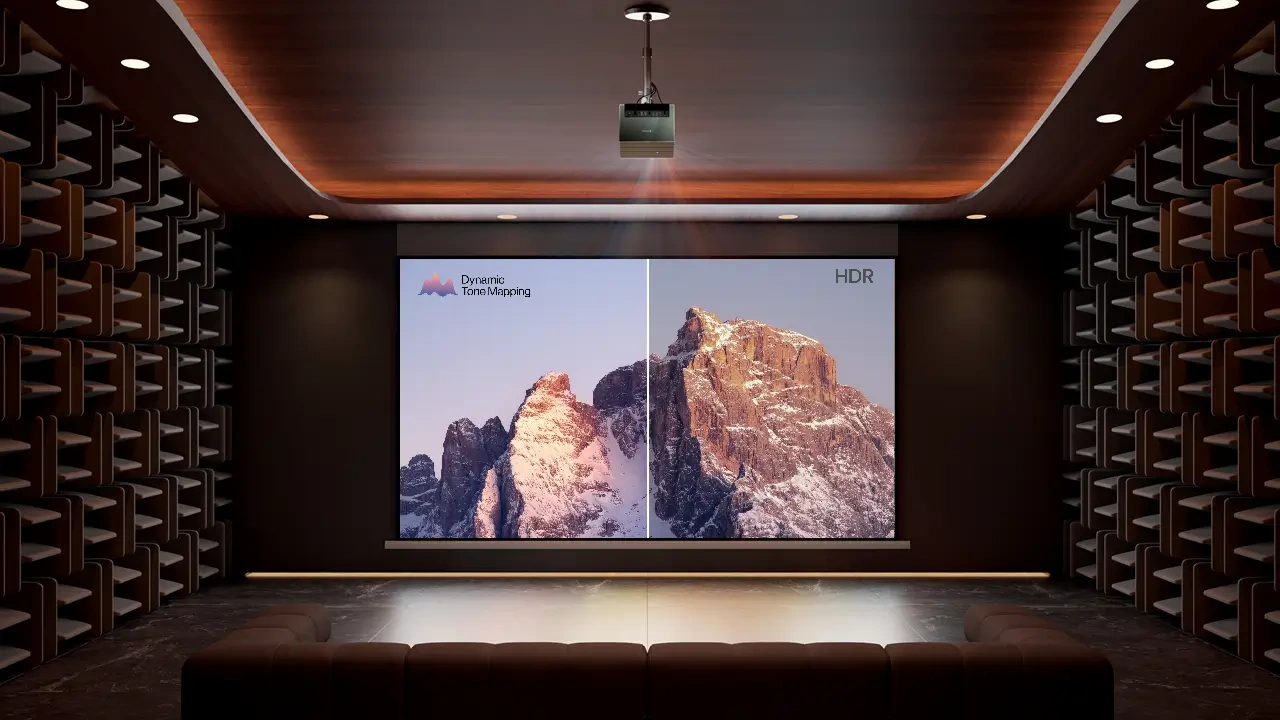
For a deeper walkthrough, it's worth optimizing projector brightness for dark rooms specifically, since ambient light control matters just as much as the projector's own output. Premium projectors such as the AWOL Valerion projector series use advanced image processing and dynamic tone mapping technologies to better adapt HDR content to large-screen viewing environments, which can noticeably narrow the gap between mastered intent and what actually reaches the screen.
FAQ
Why does HDR look washed out?
This is typically a budget-display problem rather than an HDR problem. Monitors and TVs without local dimming have to raise the backlight for the whole panel just to produce one bright highlight, which lifts your blacks toward grey and flattens contrast across the image.
Should HDR be brighter than SDR?
Not necessarily. A properly calibrated HDR image isn't meant to look brighter overall than a maxed-out SDR picture. What changes is the contrast between shadows and highlights, which should feel far more pronounced.
Should I turn HDR off if it looks too dark?
In some cases, yes. If your display has low peak brightness (under roughly 400 nits) and no local dimming, HDR may not have enough headroom to shine. A well-tuned SDR image is often the more enjoyable, punchier experience on that kind of hardware.
Member Benefits
Bring Your Cinema Experience Further
Subscribe and receive a $50 Welcome Benefit plus 4 pairs of 3D glasses, along with exclusive Valerion updates.

Points & Rewards

Member Pricing

Early Access

Priority Support
Discover More Insights